Upload and Turn Image Into Book Cover Online
Use this image-to-cover workflow when you already have artwork, a photo, a character illustration, or an AI image and need to turn it into a clean, readable book cover. Upload your image, add title and author text, export a Kindle-friendly front cover, and move faster toward publishing.
Turn an Uploaded Image Into a Book Cover
Upload the image you already have, then add the details that make it usable as a real cover: title hierarchy, author text, and an eBook-ready front-cover format.
Upload your image
Drop your image here
Choose a photo, illustration, concept art image, or AI-generated artwork you want to turn into a book cover.
Best results usually come from portrait artwork, one clear focal point, and enough empty space for text.
Add book details
Choose output direction
This tool creates a front cover first. Use the second option if you want the page content and final guidance to stay aligned with future paperback planning.
Works best for these image types
Your cover preview will appear here
Start by uploading an image, then add the title and author details before you generate.
Turning your image into a cover...
This usually takes less than one minute
Preview and export
Upload your image to preview the source first. After generation, you can download the processed front cover or run another variation with the same image.
Thumbnail-aware output
The generated front cover is laid out to stay clearer in store grids and smaller previews.
eBook-first workflow
Use one uploaded image to make a usable front cover first, then plan a separate print wrap if needed.
Why People Search "Turn Image Into Book Cover" Instead of a Generic Cover Generator
This search usually comes from a user who is already halfway through the creative process. They do not need a blank canvas or another prompt-only generator. They have a specific image in hand and want help turning that image into a book cover that looks publishable, readable, and correctly formatted.
That is what makes this page different from a broad AI book cover generator. A generic tool starts with a concept. This workflow starts with an existing asset: a photograph, a painted scene, a character image, a travel shot, a product image, or an AI illustration you already decided to keep. The real problem is not creating an image from scratch. The real problem is how to turn image into book cover output that can carry a title, author name, and clean visual hierarchy without looking improvised.
A usable cover needs more than a nice image. It needs to read quickly, especially at thumbnail size. It needs enough contrast for the title. It needs a focal point that still works after cropping. It should also fit the digital publishing context you actually care about, whether that means Kindle, KDP, lead magnets, short guides, or serial fiction. When people search turn image into book cover, they are usually asking for a faster bridge between artwork they already own and a front cover they can actually publish.
What users usually want from this workflow
- A fast way to upload an existing image and add title text
- A front cover that stays readable on Kindle or eBook listings
- A simple explanation of where subtitle and author text should go
- A cleaner path from one image to one usable publishing asset
- Enough guidance to avoid common mistakes before export
Who this page is for
- Indie authors who already have cover art and need a usable front cover fast
- Writers working with AI images who want to format the chosen image for publishing
- Coaches and creators turning a branded image into a lead magnet or eBook cover
- Teams comparing image-first cover directions before investing in a full print wrap
Image-first instead of prompt-first
This workflow starts where many real users are already working: with an uploaded image that needs cover structure, not with an empty prompt box.
Title hierarchy that makes the image usable
A beautiful image is not enough. The layout has to support readable title, subtitle, and author placement without burying the focal point.
eBook-ready output with clearer constraints
The page helps users move from existing artwork to a front cover that aligns with digital publishing expectations instead of a random social image size.
Examples of How Users Turn an Image Into a Book Cover
These examples use the site's existing sample visuals, but the underlying use case is the same: start with an image you already have, then turn it into a cover with clean hierarchy and stronger publishing fit.

Still Learning to Begin Again
by Olivia Reed
A calm, documentary-style image can work well for memoir or non-fiction once the title and subtitle are given enough contrast and breathing room.
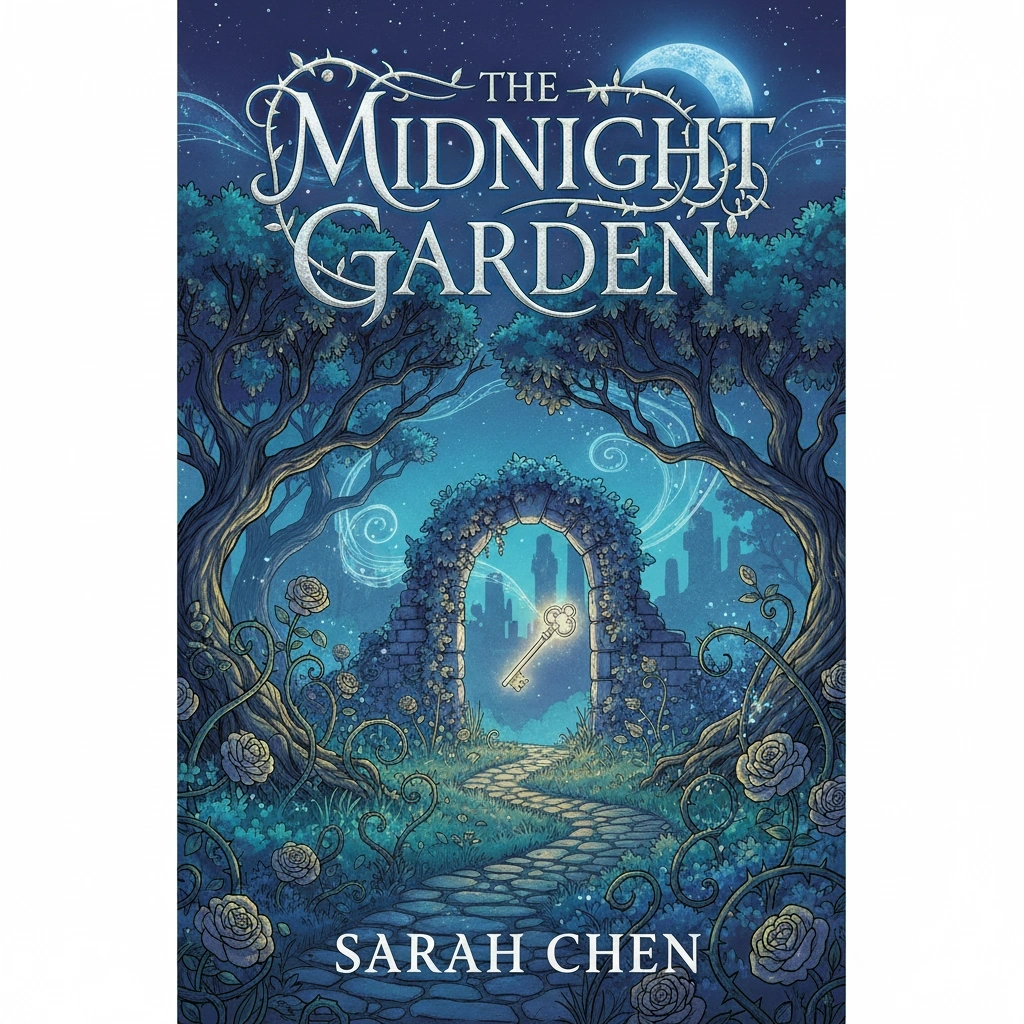
The Orchard of Ash and Light
by Mira Dalton
Illustrated artwork often has strong atmosphere already. The main job is turning that image into a book cover that still reads clearly on a crowded digital shelf.

Orbit Signal
by Daniel Cross
Users who already generated an AI image usually need one more step: resize it, add hierarchy, and export a front cover that feels made for publishing instead of testing.

When Summer Stayed
by Ivy Monroe
Character-led art can become a stronger romance cover when the text system supports emotional tone without covering faces or cluttering the frame.

No Witness Left
by Marcus Hale
High-contrast photos or scenes often work best when the cover process preserves tension but creates a cleaner reading path for the title.

The Narrow Street File
by Nina Mercer
Poster images and mood visuals can still become effective covers if the layout introduces clearer spacing, one focal hierarchy, and a deliberate subtitle line.
What a Good Image-to-Cover Workflow Should Help You Get Right
If the uploaded image stays untouched, many covers fail in the same places: the title becomes hard to read, the crop cuts off the subject, or the final result looks like a poster with text on top. A useful image-first cover tool should correct those problems before export.
One clear focal point
The best uploaded images usually have one dominant subject. That makes it easier to crop for a front cover and still leave space for readable text.
Enough room for title placement
Users often upload a strong image that simply has no quiet area for text. A good workflow should add structure so the title does not sit awkwardly on faces or fine detail.
Thumbnail readability
When you turn image into book cover output, the title has to survive the smallest preview state. That is often where generic image editors fail.
Front cover versus full print cover
One uploaded image can be enough for an eBook front cover, but a paperback or hardcover wrap still needs spine, back cover, bleed, and barcode planning.
Fast evaluation checklist before you generate
If you are not sure whether your image is suitable, use these checks before you turn image into book cover output:
- Does the image have one obvious subject instead of many competing details?
- Will the crop still look strong in a 1.6:1 eBook proportion?
- Can the title sit on top without covering the most important face or object?
- Does the image mood fit the book category readers expect?
- Would the title still be visible if the cover is reduced to a small thumbnail?
Practical rule of thumb
If the image works as a poster but not as a readable thumbnail, it still needs cover-specific formatting. That is the gap this page is meant to close.
How to Turn Image Into Book Cover Output in 4 Steps
Upload the image you already want to use
Start with the artwork, photo, or AI image you already chose instead of generating new visuals from scratch.
Add title, subtitle, and author details
These details turn a raw image into a real cover draft by introducing hierarchy, publishing context, and clearer reader signals.
Format the image for front-cover use
The tool crops, positions, and restructures the layout so the uploaded image works better as an eBook-ready front cover.
Download and review before publishing
Check the result at full size and thumbnail size, then use it as your eBook front cover or your first step toward a paperback wrap.
Why This Turn Image Into Book Cover Page Is Useful
Start from the image you already trust
Many authors do not need another batch of random concepts. They already have the image they want to use and need a reliable way to turn image into book cover output that feels intentional. This page is useful because it starts from that reality. You upload an existing visual, then shape it into a cleaner, more publishable front cover without restarting the art direction process.
Turn My Image Into a Cover
Create title hierarchy without losing the original artwork
A common failure point in image-first cover design is that the text looks pasted on at the end. The better workflow is to restructure the image so the title, subtitle, and author line feel integrated. That matters because users who search turn image into book cover are usually trying to preserve the image they already like while still making the result legible and credible on store pages.
Turn My Image Into a Cover
Move faster toward a Kindle-ready front cover
The fastest publishing win is usually the front cover, not the entire print wrap. This page helps users turn image into book cover output sized around a Kindle-friendly front-cover workflow first. That is useful because it reduces friction. You can validate the direction, test the title, and get a cleaner launch asset before you deal with spine width, back cover copy, and barcode placement.
Turn My Image Into a Cover
Keep uploaded art usable at thumbnail size
One reason this workflow matters is that an uploaded image can look impressive at full size and still fail the second it becomes a tiny cover preview. A strong image-to-cover process adds structure for visibility: stronger title contrast, cleaner focal hierarchy, and fewer distractions in the text zone. For search-driven users, that is the difference between a nice image and a book cover that can actually compete on a marketplace page.
Turn My Image Into a Cover
Give users honest boundaries around print-ready work
The page should not pretend that one uploaded image instantly solves every print requirement. A paperback or hardcover cover still needs more setup. That is why this workflow is strongest when it helps users turn image into book cover output for the front cover first, then explains what extra information is still required for a full print file. That honesty makes the page more useful and more trustworthy.
Turn My Image Into a CoverWhat to Know After You Turn an Image Into a Book Cover
Most users want confidence after generation, not just a downloaded file. They want to know whether the result is appropriate for Kindle, whether one image can serve print too, and what technical limits still matter.
A practical eBook front-cover target
For many users, the most useful first deliverable is an eBook-ready front cover. That is why the page should keep the most common Kindle-friendly baseline visible.
- A widely used target for KDP-style eBook covers is 1600 x 2560 pixels
- That front-cover format follows a 1.6 to 1 height-to-width ratio
- RGB color remains the normal choice for digital display
- JPEG or TIFF are common platform-friendly formats for eBook uploads
Where print work becomes different
The uploaded image can absolutely become your front cover direction, but a print-ready file still involves a separate set of layout requirements beyond the single image.
- Paperback cover files usually combine back cover, spine, and front cover
- Spine width changes with page count and paper choice
- Print workflows often need bleed, barcode space, and PDF export
- A clean front cover can still be the right first step before those pieces are added
Checks worth making before you publish
- View the result at thumbnail size before approving it. If the title weakens, simplify the layout or increase contrast.
- If your uploaded image is busy, keep the subtitle short so the focal point still has room to breathe.
- Do not assume one front-cover image file is your final paperback wrap. Treat it as the first approved cover direction.
- If the image contains faces or crucial detail, check that text placement does not reduce emotional clarity.
- If you plan a print edition later, keep your chosen title hierarchy consistent so the front cover can scale into a fuller packaging system.
Simple rule of thumb
Use this page to turn one uploaded image into one stronger front cover first. That is usually the fastest useful publishing asset, and it keeps later print decisions cleaner.
Technical Details for an Image-to-Book-Cover Workflow
Useful output details
- Front-cover output sized around a Kindle-friendly 1600 x 2560 proportion
- Single-image workflow designed for eBook front cover use first
- Readable title and author treatment layered onto an uploaded image
- High-resolution export suitable for review, iteration, and digital launch assets
- A cleaner starting point before expanding into paperback or hardcover packaging
Publishing and reuse scenarios
- Amazon Kindle Direct Publishing front-cover workflows
- Digital books, lead magnets, guides, and PDF downloads
- Author websites, preorder pages, and launch graphics
- Serial fiction or web novel cover testing from one strong image
- Future handoff into a fuller paperback or hardcover design process
When an Uploaded Image Is Ready to Become a Book Cover
Users searching for image-to-book-cover tools usually need help deciding whether one existing photo, illustration, or AI image can carry title text and still work as a cover thumbnail.
Crop before typography
A portrait crop with one clear subject gives the title and author name more room than a busy horizontal image.
Title-safe contrast
A cover needs a calm area for typography. If the image has detail everywhere, simplify the subtitle and use stronger contrast.
Thumbnail check
After generation, preview the cover small. If the title disappears, the image is not finished as a publishing asset.
Use this page when your source image already exists
- Upload artwork you own or have permission to use commercially.
- Choose eBook front cover first when you only need a digital publishing asset.
- Use paperback planning only after you know page count, spine width, and back-cover needs.
- Avoid covering faces, symbolic objects, or genre-defining details with text.
- Keep a copy of the original image so you can remake the cover if title placement changes.
Next steps after the front cover
These related pages help when the uploaded image needs a prompt, size check, or full publishing workflow.
Turn Image Into Book Cover FAQ
Turn Your Existing Image Into a Cleaner Cover
Upload the artwork you already have, create a stronger front cover, and move toward Kindle or self-publishing with a clearer next step.