
AI Book Cover Generator vs Canva: Which Workflow Fits Your Book?
An AI generator helps you explore a strong visual direction quickly. Canva gives you direct control over typography, spacing, templates, and manual edits. Compare the two by the file you need to publish, not only by the prettiest first image.
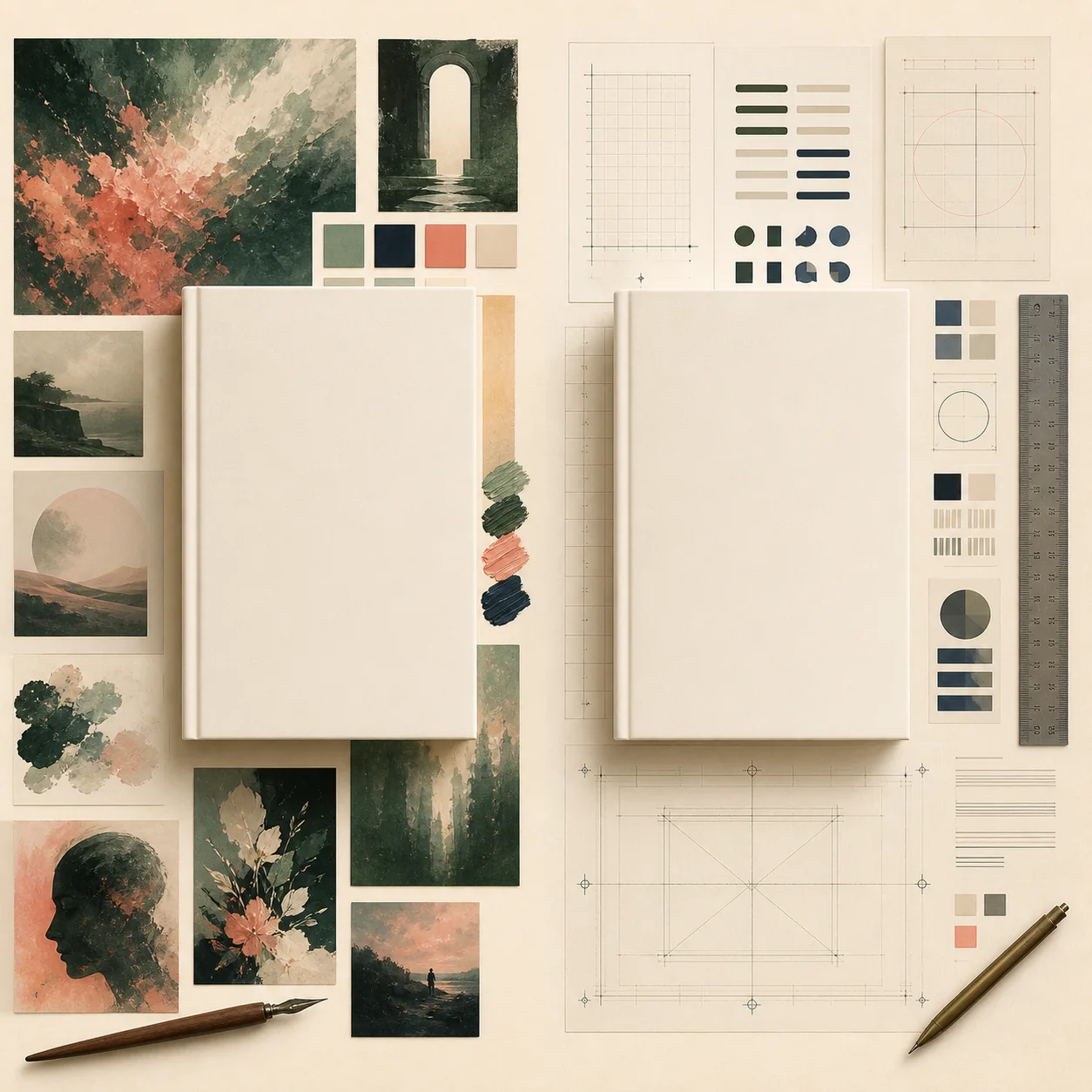
Choose the tool that solves your next publishing problem
Use an AI book cover generator when you need several genre-aware concepts fast. Use Canva when the design direction is clear and you need readable title layers, precise spacing, and reusable marketing assets. For many authors, the most reliable answer is AI for exploration followed by Canva or another layout tool for typography and final checks.
Need ideas fast?
Start with AI when you are still testing mood, genre signals, characters, settings, or color direction.
AI-firstNeed type control?
Start with Canva when the title, author name, subtitle, and series system must stay editable.
Canva-firstNeed a Kindle front?
Either can work for a single eBook front cover if you review the image, title, dimensions, and export.
Digital coverNeed a print wrap?
Use a platform template or calculator for spine, back cover, bleed, safe areas, barcode space, and PDF proofing.
PaperbackAI generator vs Canva at a glance
Neither workflow wins every category. The right choice depends on whether your bottleneck is visual ideation, typography, production setup, or the need to create several versions for one book or series.
| Workflow | Best for | Speed to first draft | Text & layout control | KDP handoff | Main trade-off |
|---|---|---|---|---|---|
| AI book cover generator | Genre concepts, mood exploration, and a fast first direction. | Very fast | Context-aware, but review title and author text carefully. | Good for front-cover drafts; verify final specs. | May need a separate typography and print step. |
| Canva | Authors who want templates, editable type, spacing, and marketing graphics. | Fast after the brief | Strong manual control over layers, fonts, and alignment. | Useful when dimensions and export settings are checked. | Template-heavy designs can feel generic without customization. |
| AI plus Canva | Authors who want original visual direction and reliable title layout. | Fast overall | Strong after the AI image becomes a background or starting layer. | Best general-purpose handoff for an eBook front cover. | Two tools mean more file management and review. |
| KDP-focused cover tool | Paperback or hardcover files with spine, back cover, bleed, and templates. | Medium | Usually strong for production text and panels. | Strong when trim size, page count, and paper type are supported. | May offer less creative range for original cover art. |
| Professional designer | Competitive launches, series branding, and covers that need market polish. | Depends on the brief | Highest control over hierarchy, positioning, and final proof. | Strong when the designer follows the platform template. | Higher cost and slower iteration. |
Treat these as workflow patterns, not promises about every product. Check the current tool terms, commercial-use rights, output resolution, and publishing template before you upload a final file.
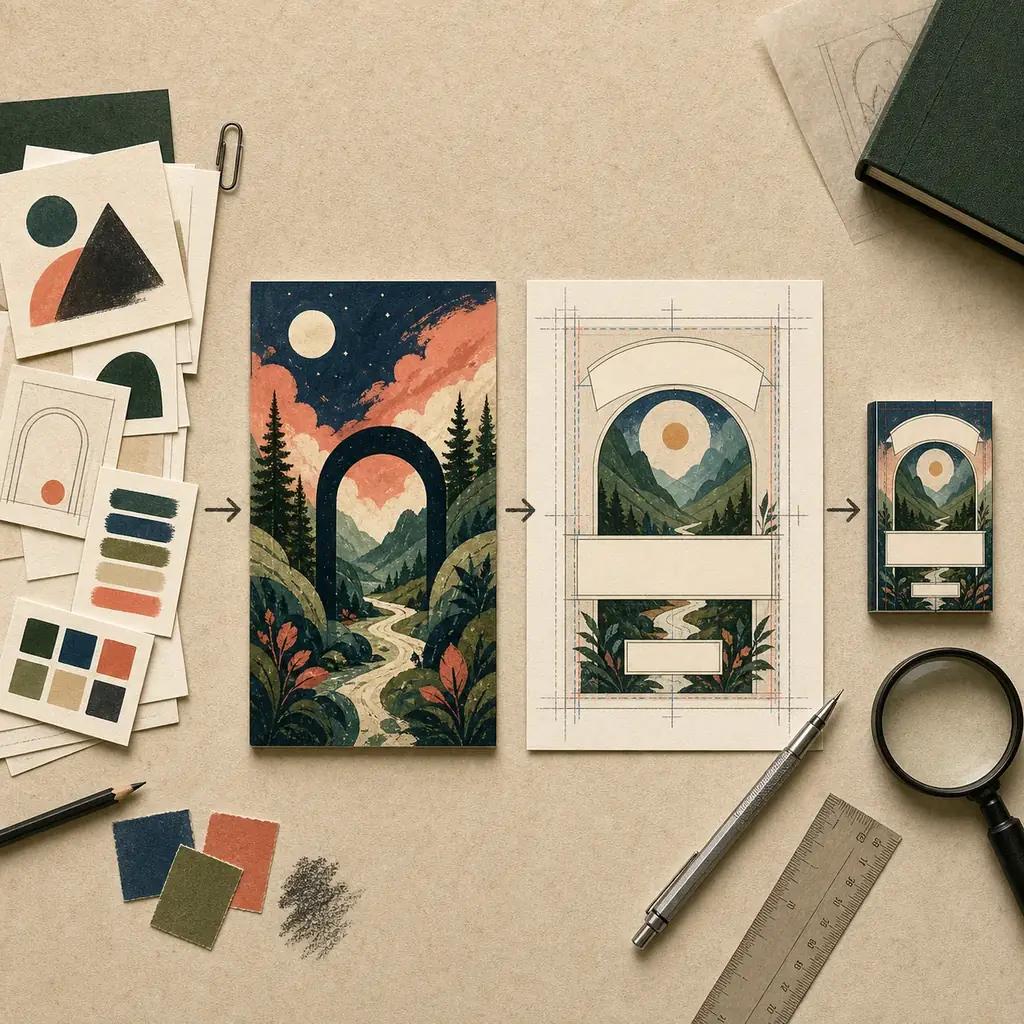
When an AI book cover generator is the better starting point
AI is valuable before the layout is settled. It can turn a short brief into several visual directions, which is useful when you know the genre and reader promise but do not yet know whether the cover should feel intimate, dramatic, minimal, mysterious, or high energy.
Explore genre signals
Test composition, color, setting, and focal subject before you spend time aligning text and decorative elements.
Generate several directions
Compare a small set of distinct concepts instead of polishing the first image that looks attractive at full size.
Protect the title zone
Ask for calm negative space, then add final title and author typography in a layer you can edit and proof.
Review rights and artifacts
Check commercial-use terms and inspect faces, hands, logos, symbols, broken text, and unwanted visual marks.
When Canva is the better choice
Canva is often the better starting point when the cover brief is already clear and the risk is not a lack of ideas but a lack of control. It keeps the title, author name, subtitle, color, and spacing visible while you assemble the design.
Editable layout
Move, resize, and restyle title, author, series, image, and decorative layers without regenerating the whole concept.
Readable typography
Test hierarchy and contrast at the same time as the artwork instead of trusting AI-rendered letters.
Series consistency
Duplicate a design system for a series, then change color, imagery, subtitle, and volume cues in a controlled way.
Marketing assets
Adapt the same visual direction into social graphics, author pages, ads, and promotional mockups.
Use AI for range, Canva for the decisions readers must read
A hybrid path keeps the speed advantage of AI without asking a generated image to solve typography, production, and market fit at the same time. It also makes it easier to stop and correct one weak part of the cover.
- Write a one-sentence brief: Name the genre, reader promise, title, author, mood, sales channel, and the visual idea the cover must communicate first.
- Generate two or three directions: Use an AI book cover generator or image tool to explore composition and atmosphere, then reject anything that fails the genre or thumbnail test.
- Move the strongest direction into layout: Use Canva or another design tool for title, author, subtitle, spacing, contrast, and consistent series elements.
- Create the correct format: Keep a single eBook front cover separate from a paperback or hardcover full-wrap file with its own template and measurements.
- Proof before upload: Review a thumbnail, compare the title with the book metadata, check rights and artifacts, and confirm the current platform rules.
Do not confuse a beautiful image with a publish-ready file
The final file matters more than the tool name. Amazon KDP separates a single Kindle front-cover image from a paperback full-wrap PDF, so the choice between an AI generator and Canva should be made against the edition you are actually publishing.
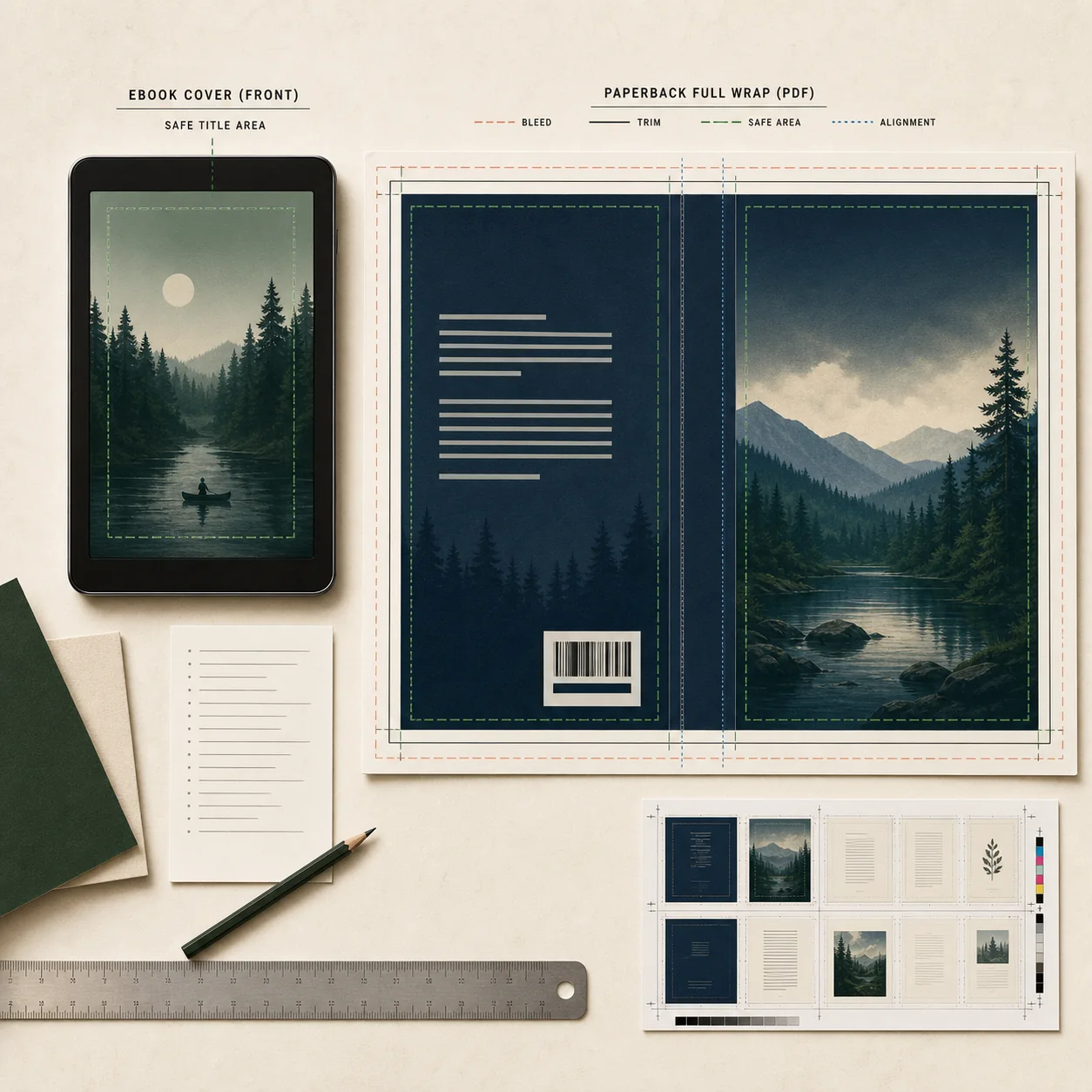
For a Kindle cover, focus on a clean vertical front image, readable title and author details, correct color and file settings, and a realistic small-size preview. For print, use the current platform template or cover calculator and account for trim size, page count, paper type, spine width, bleed, safe areas, and barcode space. Neither AI nor Canva removes that production responsibility.
Kindle or eBook front cover
A front-cover workflow is usually the simplest place to combine AI artwork with Canva typography.
- Keep one clear vertical front-cover composition.
- Make title and author details readable at thumbnail size.
- Check current KDP image dimensions, color, format, and upload limits.
- Do not add a spine, back cover, or barcode to a front-only eBook image.
Paperback or hardcover full wrap
A print cover is a coordinated spread, not a stretched eBook image.
- Set trim size, page count, paper type, and binding before final layout.
- Use the official template for spine width, bleed, trim, and safe areas.
- Leave room for barcode treatment and check whether spine text is allowed.
- Proof the final PDF and keep the editable source for corrections.
Five comparison mistakes that lead to weak covers
The wrong question is often “Which tool makes the prettiest image?” A better question is “Which workflow helps me deliver the right cover file with the least risky rework?”
| Mistake | Why it fails | Better fix |
|---|---|---|
| Choosing from one full-size preview | A dramatic image can lose its title, genre cue, or focal point when reduced to a store thumbnail. | Compare small previews beside other books before choosing a direction. |
| Letting AI write the final title | Generated lettering can be misspelled, distorted, or impossible to edit when the title changes. | Use a real text layer for title, author, series, and subtitle. |
| Using an eBook canvas for print | A paperback needs a back, spine, bleed, safe areas, and a platform-specific PDF workflow. | Start a separate print file from the current template or calculator. |
| Treating Canva templates as a market strategy | A clean template can still look generic or fail to signal the right genre. | Write the reader promise first and customize the focal image, type, color, and spacing. |
| Ignoring rights and tool terms | Commercial use, uploaded assets, watermarks, model restrictions, and platform rules vary. | Read the current terms and keep evidence for the workflow you publish. |
Check the platform rules before the final upload
Tool features and pricing change. Use first-party guidance for the file requirements that determine whether a cover can actually be uploaded.
AI Book Cover Generator vs Canva FAQ
Start with the workflow that fits your next decision
Generate a visual direction, control the title, and check the final cover at the size readers will actually see.